
Managing credit card expenses shouldn't require tedious manual journal entries or hours of data entry. If your nonprofit is still entering every credit card charge by hand, you're missing out on some of the most powerful features in QuickBooks Online (QBO).
By connecting your bank feeds and using automation tools, you can dramatically reduce manual work, maintain cleaner records, and ensure your organization's financials are always up to date.
Here is how you can set up automated credit card transactions in QuickBooks Online.
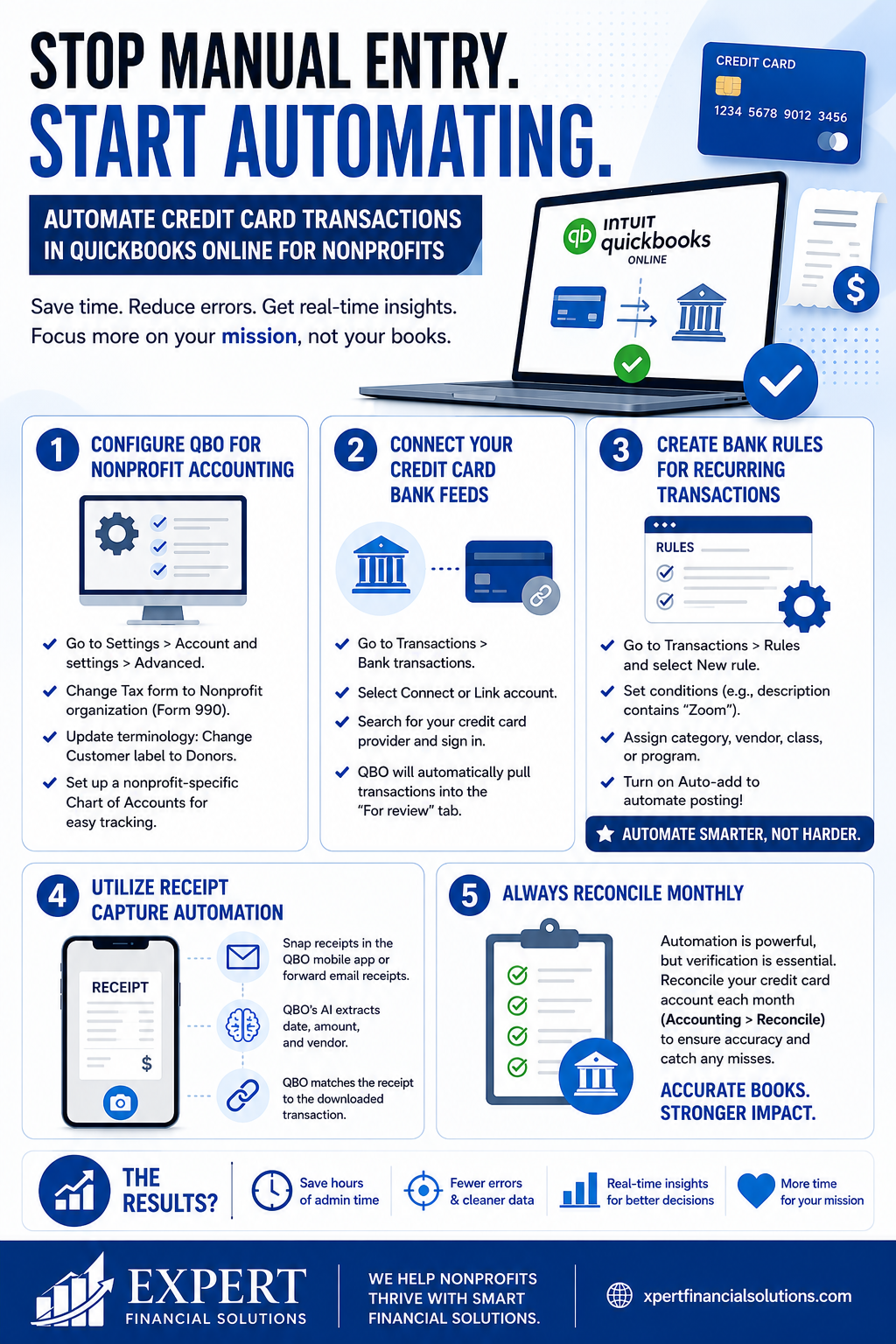
1. Configure QBO for Nonprofit Accounting
Before automating transactions, ensure your QBO environment is properly configured for your organization.
• Change Company Type: Go to Settings (Gear Icon) > Account and settings > Advanced. Edit the "Company type" and change the Tax form to Nonprofit organization (Form 990). This automatically adjusts terminology across the system (e.g., changing "Invoices" to "Pledges" and generating a Statement of Activity).
• Update Terminology: While in the Advanced settings, go to "Other preferences" and change the "Customer label" to Donors.
• Set Up Your Chart of Accounts: Ensure your Chart of Accounts uses a nonprofit-specific structure (e.g., utilizing the 7000-9000s for program services, management, and fundraising expenses). This makes expense categorization much easier.
2. Connect Your Credit Card Bank Feeds
Connecting your credit card directly to QBO allows transactions to import automatically, eliminating the need to manually enter every charge or rely on journal entries.
a. Navigate to Transactions > Bank transactions. b. Select Connect account (or Link account). c. Search for your credit card provider and enter your online banking credentials to establish the connection.
Once connected, QBO will automatically pull in your latest credit card transactions into the "For review" tab.
3. Create Bank Rules for Recurring Transactions
Bank Rules are the key to true automation in QBO. Instead of manually assigning a category to frequent expenses (like monthly software subscriptions or recurring supplies), you can teach QBO how to categorize them automatically.
a. Go to Transactions > Rules and select New rule. b. Name the rule clearly (e.g., "Monthly Zoom Subscription"). c. Set the condition: Choose "Money out" and select your connected credit card account. d. Define the criteria: For example, set the rule to apply when the Description contains "Zoom". e. Assign the transaction: Choose the appropriate Expense Category, Payee/Vendor, and if applicable, the specific Class or Program. f. The Automation Step: To completely automate the process, toggle on the Auto-add (or Auto-post) feature.
Note: Use the "Auto-add" feature carefully. It's best reserved for consistent, fixed recurring expenses. For variable expenses, you may prefer to have the rule suggest the categorization but leave it in the "For review" tab for a quick manual approval.
4. Utilize Receipt Capture Automation
If you have staff or volunteers making credit card purchases, chasing down receipts is a common headache. QBO's built-in receipt capture tool streamlines this.
• Staff can use the QBO mobile app to snap a picture of a receipt, or forward email receipts directly to a custom QBO email address.
• QBO’s AI extracts the date, amount, and vendor, creating an expense record.
• When the corresponding transaction downloads via the bank feed, QBO will suggest a "Match," linking the receipt to the transaction.
5. Always Reconcile Monthly
Automation drastically speeds up categorization, but you still need to verify accuracy. Always reconcile your credit card account at the end of each statement period by navigating to Accounting > Reconcile. This step ensures no transactions were missed, duplicated, or miscategorized by an overzealous Bank Rule.
By setting up these features, your nonprofit can shift away from manual journal entries, saving valuable administrative time and ensuring that your expense data is consistently ready for grant reports and board meetings.
← All insights
Nonprofit Finance
How to Automate Credit Card Transactions in QuickBooks Online for Nonprofits
Stop wasting time on manual credit card entries: let QuickBooks Online automate the work for your nonprofit. Learn how to connect bank feeds, create smart bank rules, and automate receipt capture to reduce errors, save hours of administrative time, and keep…
Join the conversation
Comments
Share a thoughtful question or perspective. Comments are reviewed before they are published.